The interface
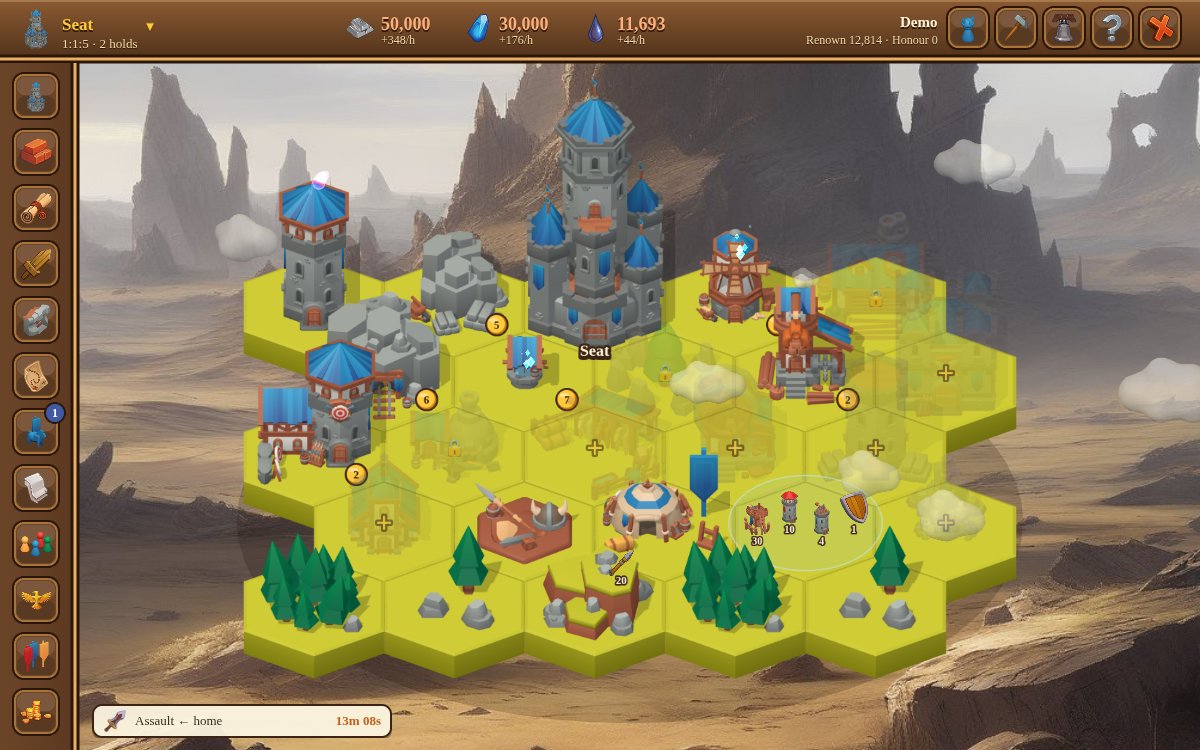
The game screen has four parts: the top bar, the toolbar on the left, the world view in the middle (your stronghold or the map), and the chat box in the lower-left corner. Most actions happen in panels that open over the world view.
The top bar
From left to right:
- Stronghold selector
- Your crest, the selected stronghold's name and its coordinates. Click it to switch between your strongholds and Skyholds. Every panel acts on the selected stronghold.
- Resources
- Iron, runestone, aether, mana and Fateshards. Under each resource is its yield per hour. Hover over it for the stock, the vault capacity and when the vault will be full. A resource turns orange when its vault is full. The mana counter shows the balance (produced minus required) and turns red when your mines are slowed. Click a resource to open the stronghold's production, or Fateshards to open the Fateshard shop.
- Your lord
- Your name, renown and honour. The crown button opens your lord: calling, counsellors, protections and Sanctuary.
- Status dot
- Green when the server is online, yellow when degraded, red when unreachable. Click it for the server status page.
- Settings, sound, ? and log out
- The gear opens the settings (language, sound). The speaker switches the music and sound effects. The ? button opens this wiki in a new tab.
The toolbar
 Realm
Realm- The selected stronghold: overview, production (with a throttle for each producer), its Skyhold, and a list of all your strongholds.
 Buildings (B)
- Every building with its next level's cost, time and requirements. A hammer badge shows that a building is under construction.
 Lore (L)
- The disciplines studied in the selected stronghold's Mage Tower. A star badge shows a study in progress.
 Muster (U)
- Raise fighting and support units. The badge counts the units still in the queue.
 Defenses (D)
- Raise fortifications and siege spells.
 Map (M)
- The province map. Use the arrows (or Left and Right) to step between provinces, type coordinates to jump, or switch to the continent overview. Click a site for its owner, its spoils field and the actions you can take there.
 Hosts (H)
- Your hosts on the march, hosts coming towards you, and the form to send a new host. The badge turns red when hostile hosts approach.
 Reports (R)
- Battles, scouting, quests, Order news and everything else, with an unread count.
 Kindred (K)
- The selected stronghold's kindred quarter, its arts, and your favour with every kindred.
 Rolls
Rolls- The rankings: total renown, prosperity, wisdom, valour, kindred, honour, renown destroyed and Orders.
 Order (O)
- Your Order, the list of all Orders, and your sworn friends.
 Merchant
- Fateshards (counsellors, boons) and the merchant (moneychanger, sellsword broker, caravan chest, auction house).
The world view
- Your stronghold
- The stronghold is drawn as a hex island in the colours of its land. Each building stands on its own plot; faded buildings are not built yet. Click a building to open it, the keep for the stronghold overview, the army camp to muster, and the towers to raise defenses. A spoils field next to your stronghold can be clicked to send Scavenger Carts to it. Drag to pan and use the mouse wheel (or pinch, on a touch screen) to zoom.
- The map
- Each province has sixteen sites, from the scorched south (site 1) to the frozen north (site 15), and the Wilds (site 16). Each site shows its stronghold, the Skyhold floating above it and any spoils field; hover over a site for its owner and renown. Hosts that touch the province are drawn as marching banners with their mission's icon. Use the mouse wheel (or pinch) to zoom in, and drag to move around.
The timeline and alerts
The timeline lists what finishes next: buildings, studies, the muster queue and your marching hosts. Click an entry to open its panel.
When a hostile host or ravens march on one of your strongholds, a red banner under the top bar counts down to their arrival and a horn sounds. Click the banner to see the incoming hosts.
The chat box
The chat box in the lower-left corner has three tabs: World, Order and Whispers. See Chat, reports and status for commands and limits.
On a phone
On a phone the screen is laid out for a thumb:
- Held upright, the top bar shows the stronghold selector, your lord and the status dot, with the five resources in a row underneath. The toolbar becomes a tab bar along the bottom with the most used buttons: Buildings, Map, Hosts, Reports and Chat. More (the three dots) holds the rest of the toolbar, then your lord, server status, settings, sound, this wiki and logging out. Its badge counts unread reports, hostile hosts and whispers behind it.
- Turned on its side, the resources move into the top bar and the buttons into a narrow column on the left, with More at its foot.
- Panels and the chat open as sheets that fill the screen between the bars; opening one folds the other away. The chat button's badge counts unread whispers and Order lines (a dot means new lines in the world channel).
- Tap a building, a site or a timer to open it. Drag to look around and pinch to zoom, on your stronghold and on the map. The map starts zoomed in on your own site; pinch out to see the whole province.
- The next three timers sit just above the tab bar.
Hotkeys
| Key | Action |
|---|---|
| B | Buildings |
| L | Lore |
| U | Muster |
| D | Defenses |
| M | Map |
| H | Hosts |
| R | Reports |
| K | Kindred |
| O | Order |
| Enter | Write in the chat |
| / | Start a chat command |
| Esc | Close the panel |
| Left Right | Previous or next province on the map |
Language
The game plays in English or French. Pick the language under the login form or in Settings. Reports are stored as templates, so they read in the language of whoever opens them. Names chosen by players and chat messages are never translated. This wiki is written in English.